

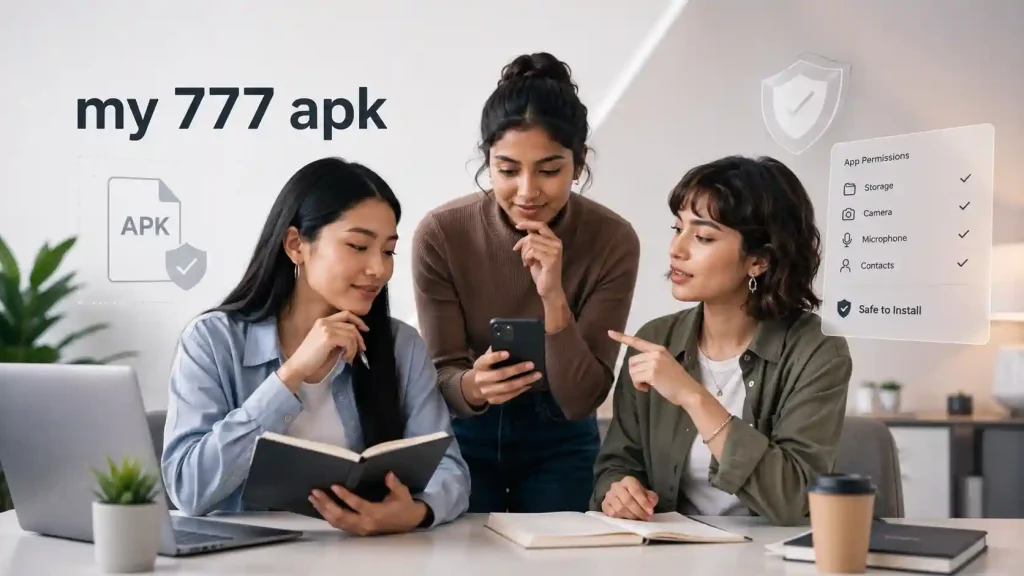
My 777 APK is an APK, which is simply the installation file format used by Android, but the source of that file, the permissions it requests, and the way it handles login or payment-related details all matter. Before installing My 777 APK, it is worth slowing down for a few minutes and checking what is being granted.
Not every permission is a problem. But every permission should make sense.
Why My 777 APK Source Verification Comes First
A browser result, Telegram message, or forwarded download link is not automatically an official source. Before opening any APK file, look for a consistent publisher identity: the same app name, website domain, privacy policy, support details, version information, and update history.
A reliable source should explain who operates the app and where users can read its terms. If a page only has a large download button, vague claims, or no clear support details, there is no reason to rush.
Android requires users to actively allow installation from sources outside Google Play. That extra step exists because Android treats unknown-source installs differently from standard Play Store installations.
For a My 777 APK safety review, ask simple questions first:
- Does the publisher have a stable and clearly named website?
- Is there a visible privacy policy and support contact?
- Does the page show a version number and recent update date?
- Is the same link repeated across suspicious pop-ups or unrelated websites?
- Does the app description clearly explain what information it collects?
If these basics are missing, stop there. A file is not worth installing just because it is easy to find.
What “Install Unknown Apps” Actually Means
When installing an APK through Chrome, a file manager, or a messaging app, Android may ask you to allow that specific app to install unknown apps. This does not mean your entire phone becomes permanently open to every APK. It is usually permission for one source, such as Chrome or Files.
Still, it should be treated as temporary access.
Once the installation attempt is finished, review the setting and turn it off if you no longer need it. Do not disable Google Play Protect simply to force an installation through. Play Protect can warn users about apps from outside Google Play and may offer to scan unknown apps for potential harm.
A warning does not always prove an APK is harmful. But it does mean you should not continue until the publisher and file source are independently clear.
My 777 App Permissions: What May Be Normal and What Needs a Pause
Android separates permissions into different categories. Some access is requested while using the app, while certain higher-risk controls appear under Special App Access in device settings.
Use this simple guide before accepting anything.
| Permission or access | When it may make sense | When to pause and question it |
| Camera | Uploading a profile image, scanning a QR code, or identity verification initiated by you | The app asks immediately without explaining why |
| Photos and media | Choosing an image or attaching a document yourself | It requests broad media access with no upload feature |
| Notifications | Update alerts or account notices | It is presented as compulsory before the app can be opened |
| Location | A clearly explained local feature | The app has no location-based function |
| Contacts | Rarely necessary for a basic account or game app | It says contacts are required for registration or support |
| SMS | Usually not needed for routine use | It asks to read messages instead of letting you enter an OTP |
| Accessibility access | Usually unnecessary | It asks to control screen actions or read what appears on your screen |
| Overlay or “appear on top” access | Rarely needed | It requests permission to display over other apps |
| Device administrator access | Not expected for a normal entertainment app | It wants control over device settings or app removal |
The most important rule is relevance. A My 777 app permission should match a feature you are actively using. Camera access for a document upload may be understandable. Contact access for a simple sign-in process is much harder to justify.
Android lets users review and change permissions later through Settings, Security & Privacy, and Permission Manager.
A Safer My 777 APK Installation Check
Before tapping install, check the file name and make sure it has the expected .apk extension. Avoid files that arrive as compressed archives, ask for another installer, or redirect through several pages before the download begins.
Next, keep these details in mind:
Check device compatibility
An APK may fail because it was built for a different Android version or phone architecture. A failed installation is not a reason to look for modified files or unofficial “fix” versions. Check whether your Android version has enough storage, restart the phone, and confirm the version information from the publisher.
Review the first launch carefully
After installation, do not accept every prompt quickly. Open the app, read each request, and deny anything that does not connect to a visible feature. Android allows sensitive permissions such as camera, microphone, and location to be granted only once in many situations, which can be useful when you need a feature temporarily.
Keep login details inside the verified app
For My 777 login safety, never share an OTP, password, screen recording, or remote-device access with someone claiming to be support. A genuine support process should not require a user to hand over control of their phone.
The same logic applies to payment or withdrawal-related screens. Before entering bank or wallet information, make sure the app has clear terms, a visible privacy explanation, and a support route that does not rely only on messaging accounts.
My 777 App Updates and Privacy Details
An update should come from the same verified source used for the original installation. If an app suddenly asks you to download a new APK through an unfamiliar page, treat it as a fresh verification task, not an automatic update.
A transparent update page normally explains what changed: bug fixes, compatibility improvements, or privacy-related changes. Vague messages such as “install urgently” without version notes are not enough.
Privacy matters here too. Read whether the app says it collects mobile numbers, device information, payment details, or uploaded documents. The explanation does not need to be long, but it should be clear enough for users to understand what is collected and why.
Common My 777 APK Troubleshooting Issues
If the app will not install, do not keep retrying random files. Check storage space, Android version compatibility, whether the file fully downloaded, and whether a previous version needs to be removed.
If the app opens but crashes, restart the device, clear the app cache only if you understand what data may be removed, and check for an update from the same verified publisher. Avoid installing cloned versions just to solve a login or loading issue.
Final Thought
The safest way to approach My 777 APK is not to assume that every permission request is dangerous, or that every download page is reliable. Instead, match each request to a real app function, keep Android protections enabled, and verify the publisher before giving an app access to personal details.
A few careful checks at the start can prevent a much bigger issue later.